
Grab Your App

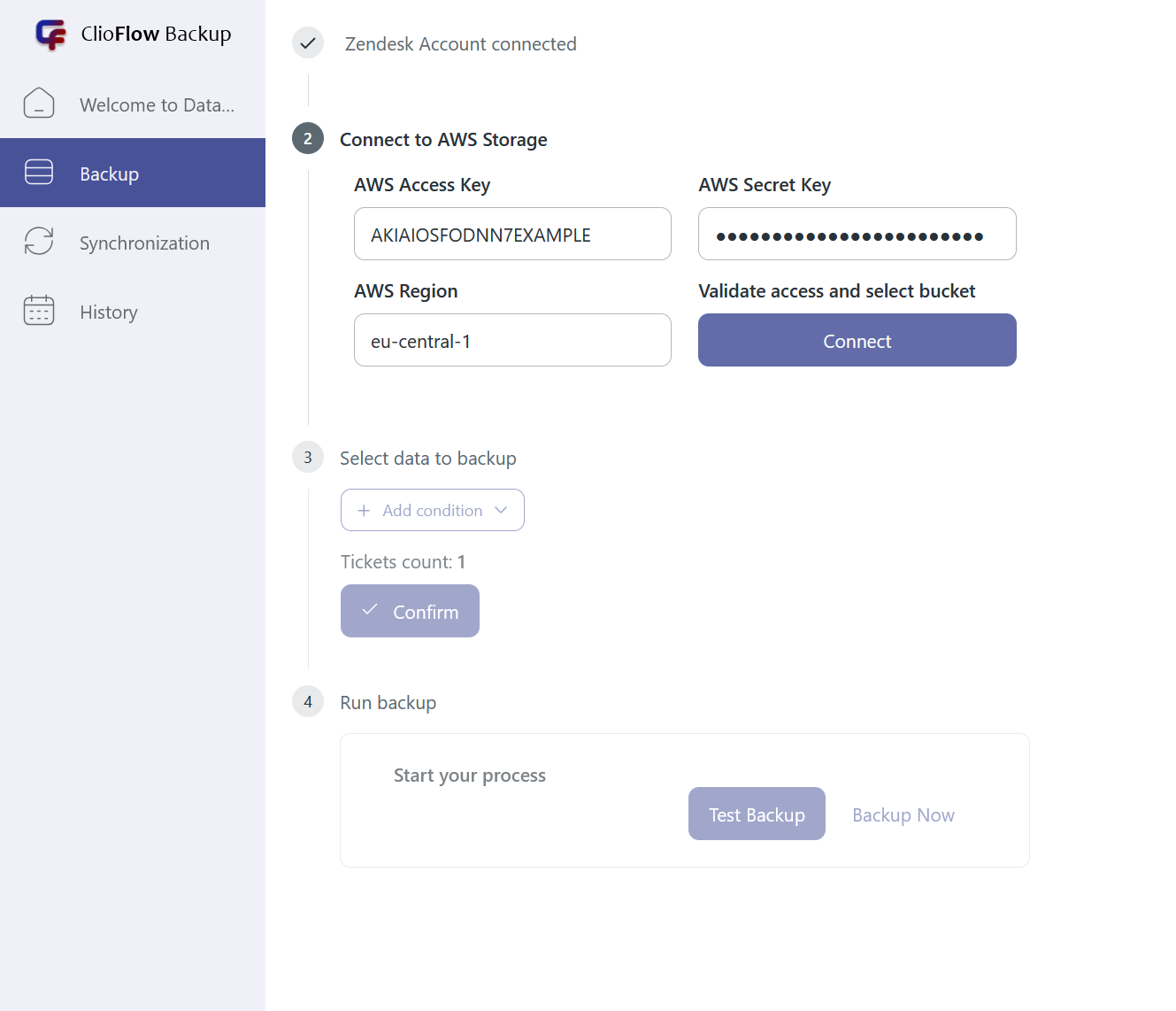
Connect to AWS Storage
Configure the ClioFlow Backup app to securely export your Zendesk data to your Amazon Web Services (AWS) environment.
Click Connect to validate your credentials and select the AWS S3 bucket where your data will be stored.
Enter your AWS Access Key and AWS Secret Key in the designated fields.
Specify your preferred AWS Region (e.g., eu-central-1).
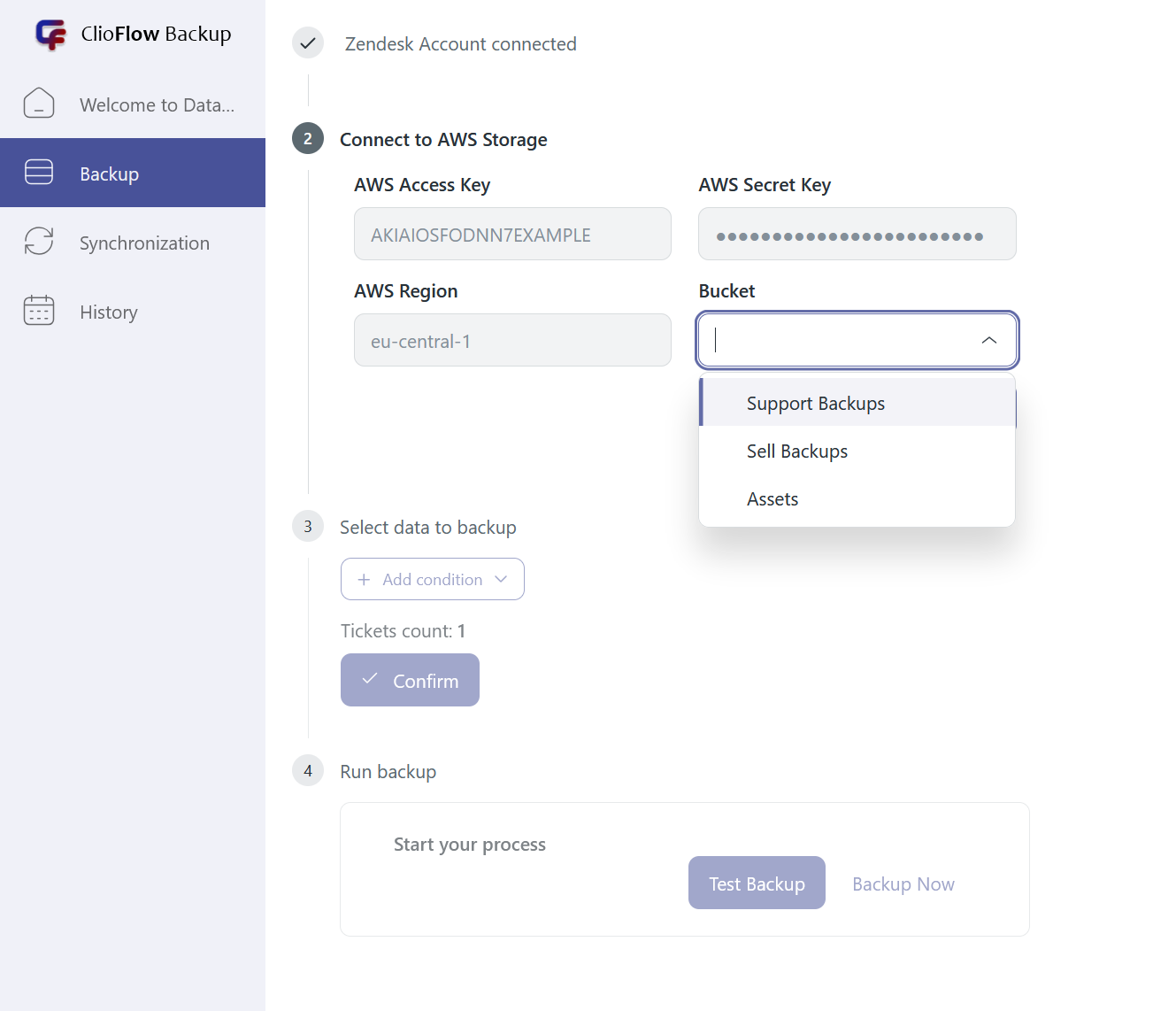
Select Your Secure AWS Bucket
After successfully validating your AWS access credentials, choose the specific S3 Bucket from the dropdown menu where your Zendesk data will be securely stored (e.g., Support Backups, Sell Backups, or Assets)
Select Data to Backup
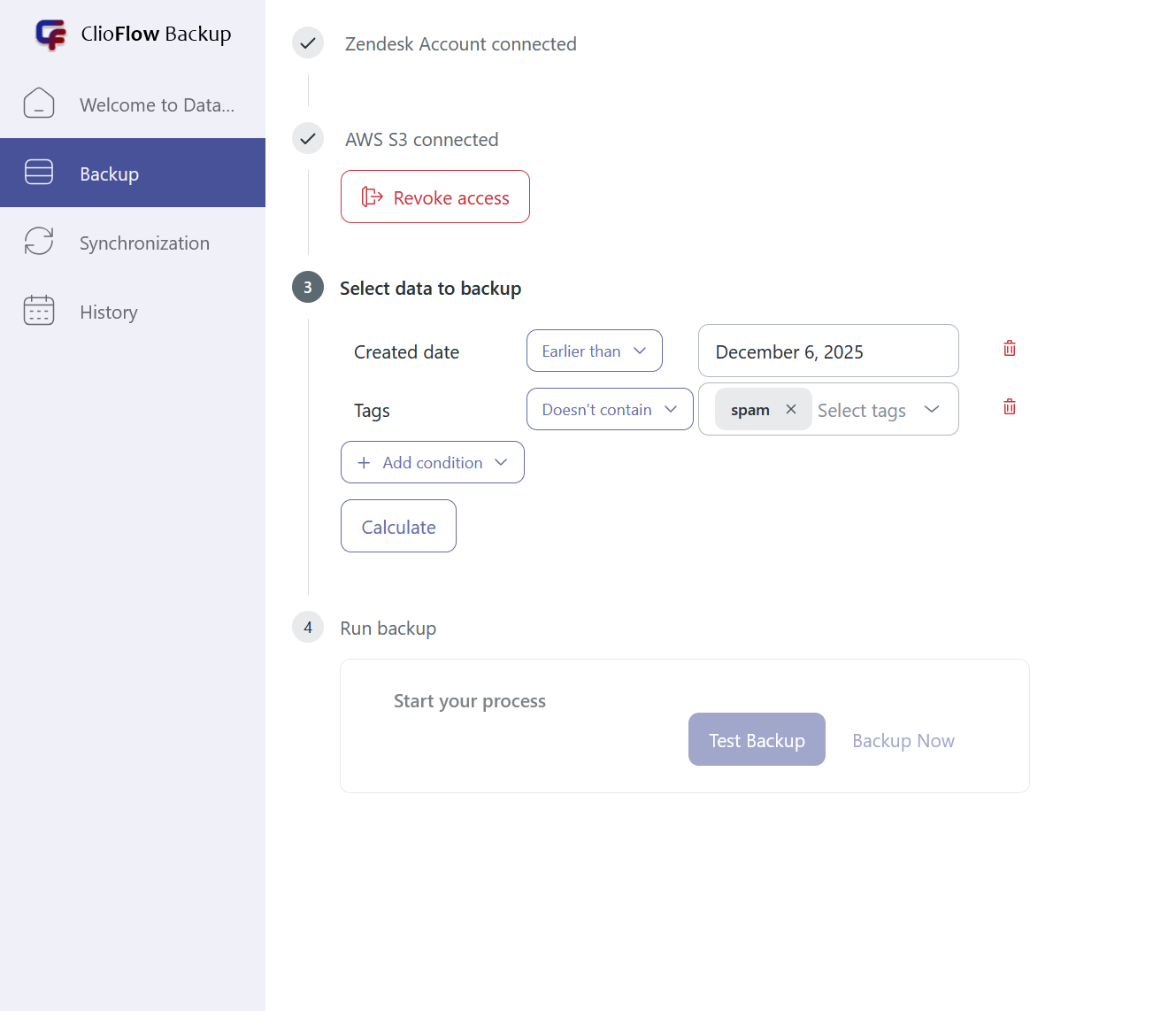
Define which Zendesk data should be included in the backup process.
Click the Add condition button to specify filters for the data you want to export (e.g., Tickets, Users, etc.).
Click Calculate to see the ticket count based on selected criteria.
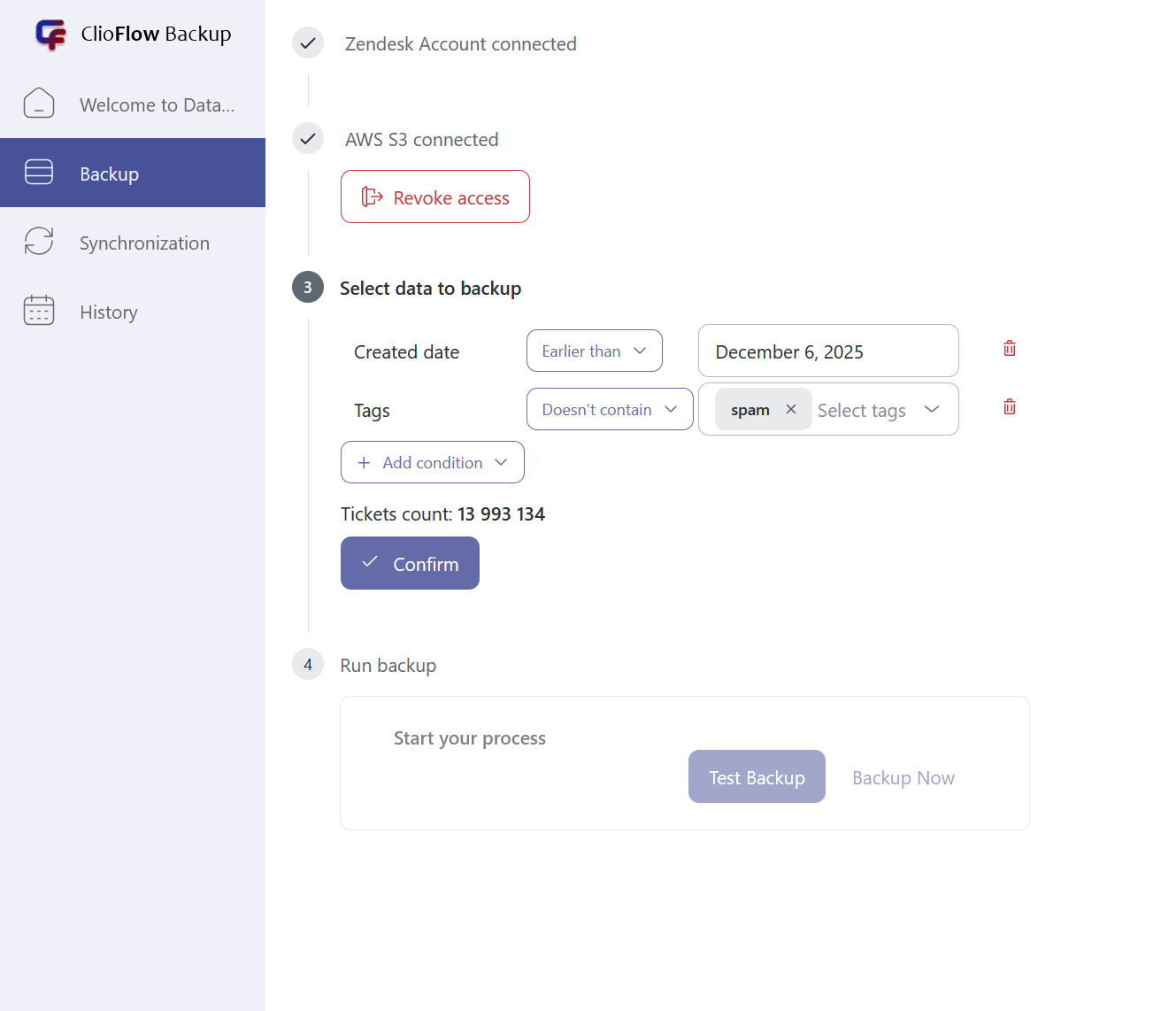
Confirming Your Data Selection Count
Before saving your criteria, verify that the Tickets count displayed (e.g., Tickets count: 1) accurately reflects the total number of Zendesk items that match your defined conditions. Click Confirm to lock in your selection.
Execute Backup (Test or Complete Run)
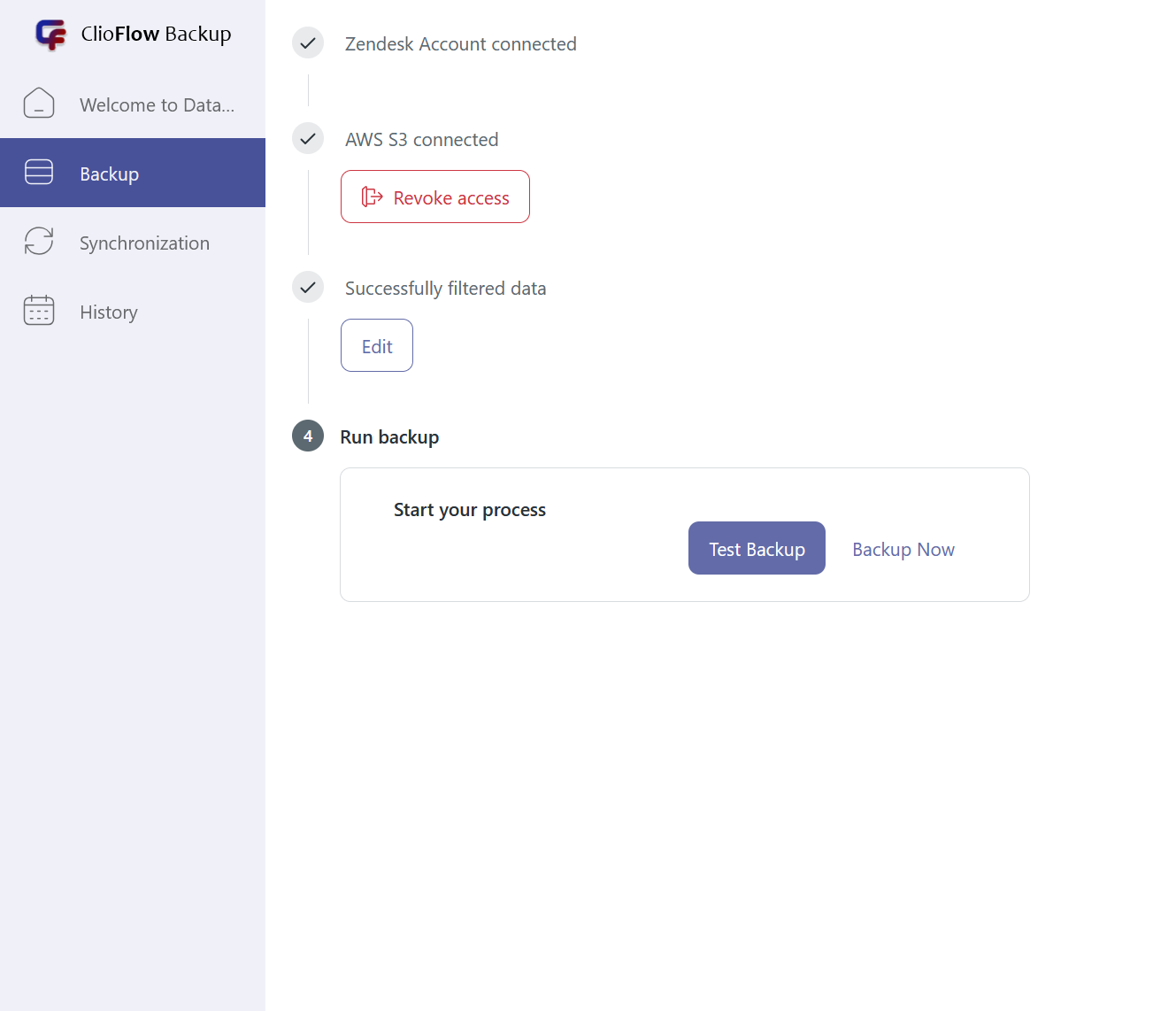
Use the controls in this section to either validate your setup or start the complete data export.
Click Backup Now to initiate the complete and secure transfer of your selected Zendesk data to your AWS storage.
Click Test Backup to run a dry-run verification of your AWS connection and data selection before committing to a full export.
Synchronization
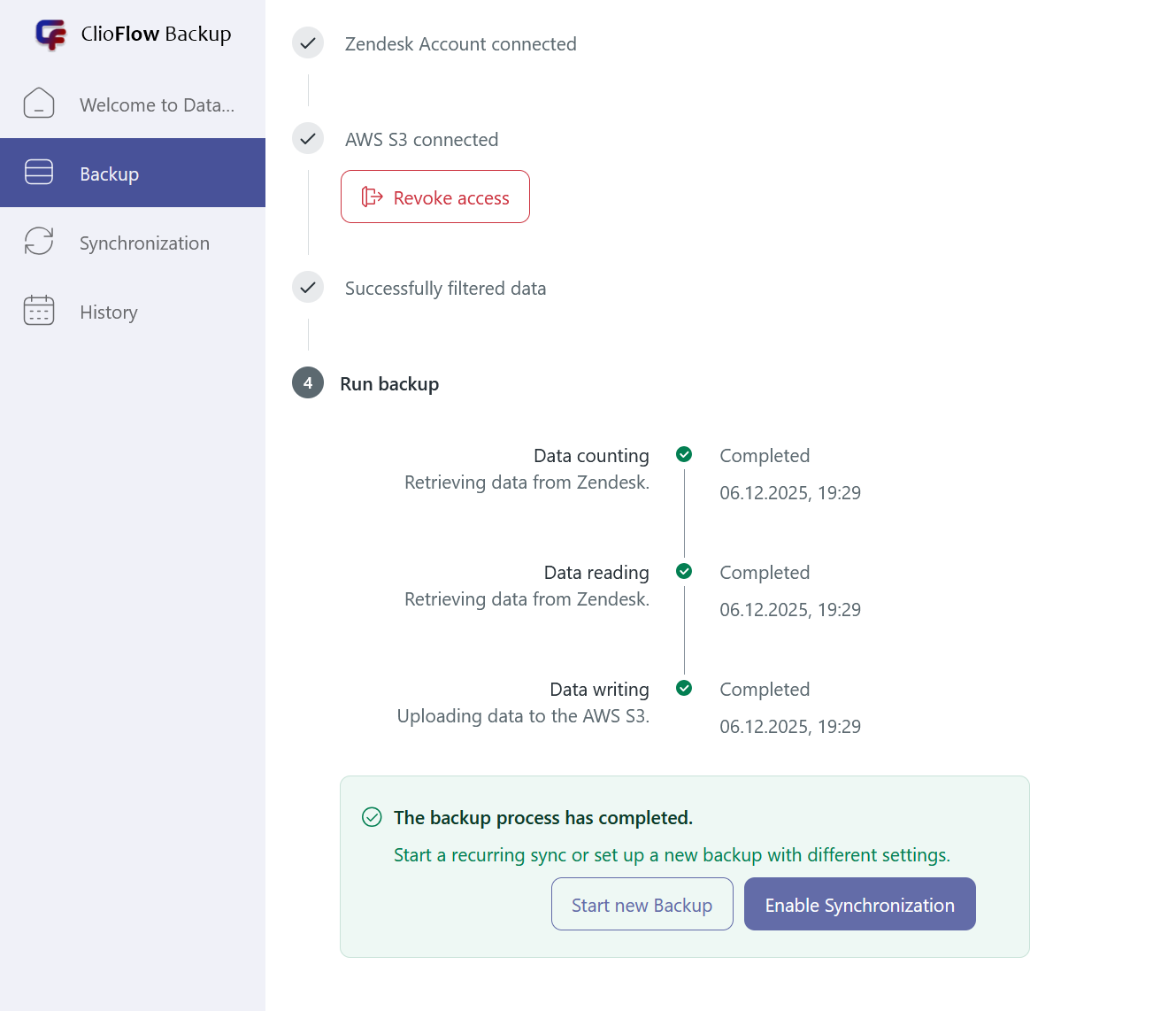
After the process finishes, the app confirms:
Recurrence: You are prompted to either “Start new Backup” with different settings or “Enable Synchronization” to set up a recurring, automated backup schedule.
Confirmation: A message confirms that “The backup process has completed.”
Get Started in 3 Easy Steps
Download the App
Get your copy of ClioFlow directly from our website. The download package includes everything you need to start protecting your Zendesk data immediately. No extra tools are required, and the process takes only a few minutes.
Install the App in Zendesk
Follow our step-by-step installation guide to add ClioFlow to your Zendesk account. The guide walks you through every click — from granting permissions to connecting your AWS storage — so you can set up the app without any technical difficulties.
Start Data Backup
Once the app is installed and connected, you can start your first backup. Choose which data and fields to include, set a date range, and run a test backup if needed. After confirming everything works, run the full backup to securely store your Zendesk data in your AWS account. You can also enable automatic synchronization to keep your data updated continuously.
Grab Your App
